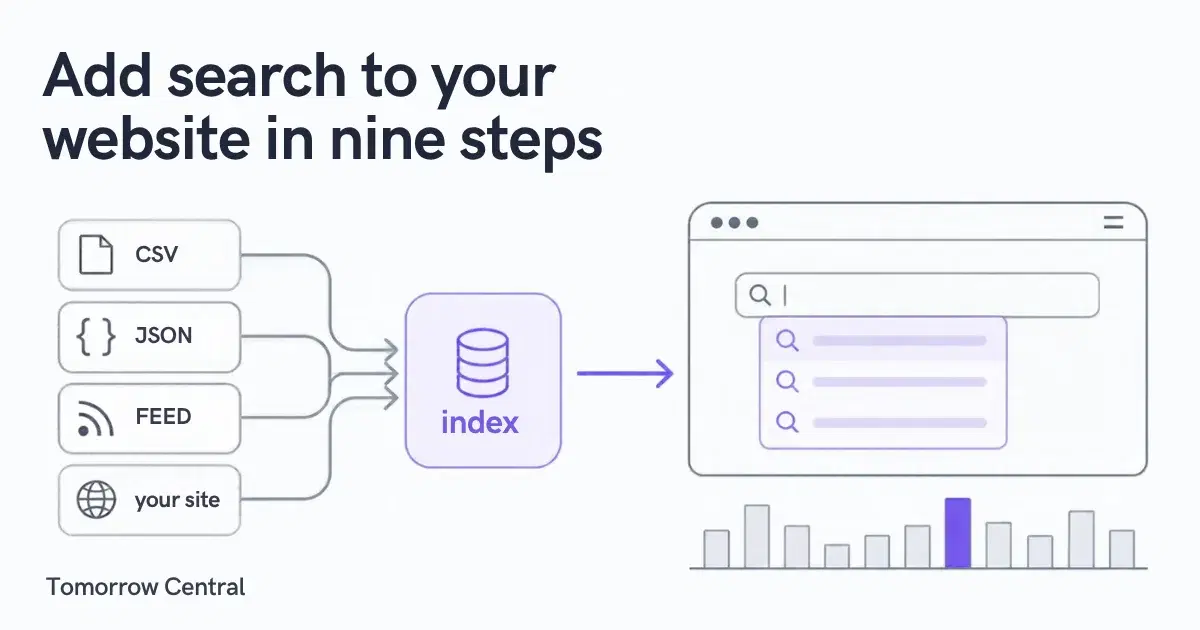
Adding search to a website is mostly a data job. The whole path in nine steps: bring your catalogue in as a file or import it from your site, verify the domain, test, then put a search box live.
What does it take to add search to a website?
To add search to your website you need three things: a searchable copy of your content (an index), a box or page that sends visitors' queries to it, and a way to see which searches found nothing. With Tomorrow Central Search, you get the content in by uploading a CSV, JSON or Google Merchant feed, or by importing it from your own site. You verify that the site is yours, then paste a search box or link to a results page.
The box is the easy part. Most attempts to add search to a website go wrong behind it: the index is missing half the catalogue, product links point nowhere, or nobody looks at what visitors typed and failed to find. Site search means a search over your own site's content only, and a zero-result search is a query that returned nothing.
The zero-result searches are where the work is. On one live catalogue, the same engine cut zero-result searches roughly tenfold (measured differently before and after; see the case study).
A site search is only as good as the list behind it. Three fields per item (an id, a title and a URL) decide whether the box returns anything useful.
This guide is for website owners, marketers and solo developers who run a catalogue or content site and want working search this week, without building a search engine. If you are still deciding whether your catalogue needs search at all, start with the pillar guide on site search for a catalogue.
How do the pieces of site search fit together?
| Piece | What it is | What it decides |
|---|---|---|
| Content source | A file you upload, or an import of your website | Which items can ever be found |
| Project | One searchable catalogue: its index, vocabulary, rules and statistics | What a search runs against |
| Verified website | A site you have proved you control | Where the importer may crawl and where results may be served |
| Public key | A pk_ key tied to one project, usable only from your verified site | Who may query the project from a browser |
| Search box or results page | The widget, the hosted results page, or your own page | What visitors see |
| Statistics | Searches, zero results, clicks and speed for the project | What to fix next |
Why do website search boxes fail after launch?
They rarely fail on day one. They fail quietly, because nothing errors when a search returns nothing useful. The usual causes:
- The index is incomplete. An export missed a category, or a crawl stopped early, so whole sections never appear in results.
- The data is dirty. Two items share an id, a URL is relative or broken, or titles are empty. Each one is a result a visitor can't use.
- Spelling isn't forgiven. Visitors type "trowsers" and get nothing, though you sell trousers.
- Nobody reads the zero-result list. The queries that returned nothing are the clearest record of what visitors wanted and couldn't find, and on most sites nobody opens it.
- The box is hard to find. Nielsen Norman Group's long-standing advice is a visible type-in field near the top of the page, wide enough for a typical query, not a link to a separate search page (NN/g, 2001).
The steps below are ordered so each of these is caught before visitors see it.
Which should you use: a file upload or a website import?
There are two ways to get your catalogue into the index. Pick by whether you already have a clean export.
| File upload | Website import | |
|---|---|---|
| What you provide | A CSV, JSON or Google Merchant RSS/Atom feed | Your website's address |
| Best when | Your shop, CMS or spreadsheet can export items with an id, title and URL | You have no clean export, or your pages are the catalogue |
| What it reads | Exactly the rows you send | robots.txt and sitemaps first; otherwise a same-host crawl up to three links deep |
| Shopify and WooCommerce | Use a Google Merchant feed, or a CSV with id, title and url columns | Products are read through the store's API |
| Keeping it fresh | Upload again (an upload replaces the whole index) | Scheduled re-imports |
| Needs a verified website | To serve results publicly, yes | Yes, before the import runs |
A file gives you the most control: what you send is what gets indexed. An import saves you preparing a file, but it can only index what your site lets it reach.
What do you need before you start?
- An email address to sign up with Tomorrow Central Search.
- Access to your domain's DNS settings, or the ability to put a small text file on your web server. You need one of the two to verify the website.
- Either a catalogue export (CSV, JSON or a Google Merchant feed) or a public website with a sitemap.
- Access to your site's templates or page builder, to paste one snippet or add a link.
- A rough item count. The free plan covers up to 5,000 products at the time of writing. Very large catalogues may need a different approach.
How to add search to your website, step by step
The Search page shows a setup checklist that ticks off the main milestones (website verified, project created, catalogue added, search link created, first visitor search) from what is actually set up.
Step 1: Sign up for Search
Sign up for Search. Sign-up is open to the public, and signing up from this link switches Search on for your organisation.
Step 2: Check that Search is switched on
If you signed up from the Search page, Search is already on. Otherwise, open Organization in the dashboard and switch Search on under Softwares. Until it is on, the Search pages tell you it isn't on yet, and every Search request is refused for your organisation.
Step 3: Verify your domain with a DNS TXT record or a .well-known file
Open Websites in the dashboard menu and add your website. You prove ownership in one of two ways:
- DNS: add a TXT record
tc-verify=<token>at_tc-verify.<your-domain>. - File: publish the token at
https://<your-domain>/.well-known/tc-verify.txt.
Each website you add is verified on its own. A DNS check also covers the www. version of the domain; any other subdomain, such as shop.example.com, is added and verified separately. A domain can belong to only one organisation. Website import needs a verified site, and so does the public search link.
Verification is re-checked regularly; leave the record or file in place.
Step 4: Create a search project
Open the Search tool and create a project. A project holds one searchable catalogue, with its own vocabulary, rules and statistics. The free plan includes one project.
Step 5: Upload a CSV, JSON or product feed, or import your website
Open the project's Catalogue tab and either upload a file or import from your website.
- Upload: choose your CSV, JSON or feed. When indexing finishes you get a report of any rows that were skipped, with the reason for each.
- Import: choose From your website and start an import of your verified site. It reads robots.txt and your sitemaps, then fetches pages at a polite pace. Under Re-import automatically you can repeat the import on a schedule, if your plan includes it. Each re-import counts as one of that day's uploads.
An upload replaces the whole index. Always send the full catalogue, not just the new items.
Read the skipped-rows report before moving on. A missing URL in your export is easier to fix now than after visitors have seen empty results.
Step 6: Test your search while signed in
Open the Try it tab and search your own catalogue as a visitor would. Try your ten most obvious queries, two or three misspellings, and something you know you don't sell. Try-it searches are not counted in your statistics or your monthly search allowance.
If a product should always come first for a query, the Rules tab lets you pin up to three results to the top or hide results you don't want shown, and preview the results with and without your rules.
Step 7: Create your search link (public key)
Open the Search link tab and choose Create my search link. This issues a public key (it starts pk_) tied to exactly this one project. The key only works while Search is on and your website is verified, and browsers may call it only from your verified site's exact origin. A copied key on someone else's site gets nothing back. You can switch it off from the same tab with Turn this link off.
Step 8: Add a search box or results page to your site
The Search link tab gives you three ways to show results. Pick one, or combine them.
- The search widget. Paste the
widget.jssnippet into your site's template. It adds a type-ahead search box, with suggestions as the visitor types, grouped by type when your items carry a publictypefield. - The hosted results page. Results appear on a page hosted at
https://search.tomorrowcentral.com/s/{key}?q=. Use the ready-made search box snippet from the Search link tab, or point any form at your search link. This is the low-code route. - Your own results page. In the Search link tab, under Show results on your own website, copy one line onto the page where results should appear, then save that page's address. It must be https on your verified website. Searches from your link, search box and widget then open there, in your site's own design.
Step 9: Watch your search statistics
The Statistics tab shows searches, zero-result searches and their rate, clicks and click-through rate, spelling corrections, response time (p50 and p95), a daily series, and your top queries, top zero-result queries and most-clicked results. The setup checklist's last item ticks when the first visitor search arrives through your link.
What format does the catalogue file need?
Every item needs three fields. Everything else is optional.
| Field | Required? | What it is |
|---|---|---|
id | Yes | A stable, unique identifier: your SKU, product id or page id |
title | Yes | What the visitor sees and what matches most strongly |
url | Yes | The full address the result links to |
summary | No | A short description shown with the result |
body | No | Longer text to search within |
Three formats are accepted:
- CSV with a header row, for example:
id,title,url,summary
SKU-1042,Linen trousers navy,https://example.com/p/linen-trousers-navy,Relaxed fit linen trousers
SKU-1043,Linen shirt white,https://example.com/p/linen-shirt-white,Short-sleeve linen shirt- JSON, either a list of items or an object with an
itemslist:
{"items": [{"id": "SKU-1042", "title": "Linen trousers navy", "url": "https://example.com/p/linen-trousers-navy"}]}- Google Merchant RSS or Atom feed, the one many shops already produce for Google Shopping.
How the upload treats your data:
- A file without an
id,titleorurlcolumn is refused as a whole. - A row with a missing required field or a bad URL is skipped, with the reason reported. The rest of the file still loads.
- If two rows share an id, the last one wins.
- A feed containing a DOCTYPE or XML entities is refused outright, as a security measure.
- An upload replaces the whole index. Visitors see either the old catalogue or the new one, never half of each. It also means a partial file leaves you with a partial index.
- Your plan caps file size, uploads per day and item count.
What does the website importer do on your site?
Tomorrow Central Search's importer is built to behave like a well-mannered crawler on a site you own. At summary level:
- robots.txt first. It reads your robots.txt and follows it. If robots.txt can't be reached, it treats the whole site as disallowed. That is what the robots.txt standard requires: an unreachable file (a server error, say) means assume complete disallow, while a 404 means the crawler may proceed (RFC 9309, §2.3.1.3–2.3.1.4).
- Sitemaps before crawling. If you publish sitemaps, it reads them. If not, it crawls links on the same host up to three levels deep.
- A polite pace. It fetches slowly and honours a
Crawl-delayin robots.txt. - Bounded work. Each import has time and size limits, and large JavaScript-built sites may be only partly rendered.
- noindex is respected. Pages you mark noindex stay out of search.
- It identifies itself as
TomorrowCentral-Search-Importer/1.0, so you can see it in your server logs. - It stays on your site. It only reaches public addresses, and follows redirects only within your verified hosts.
If an import comes back smaller than expected, check robots.txt and noindex before anything else.
Where should search results appear?
| Option | Effort | Good for | Trade-off |
|---|---|---|---|
Search widget (widget.js) | Paste one snippet | Type-ahead suggestions on every page | Needs access to your site template |
Hosted results page (/s/{key}?q=) | Link a form | Getting live fastest; site builders with limited script access | Results open on a page we host |
| Your own results page | One pasted line on a page of your site | Keeping visitors on your domain, in your design | https on your verified site required |
A common pattern is the widget in the header for suggestions, with Enter sending the full search to a results page: the hosted page, or your own if you set one.
What should you check in the first week?
| Number | Where | What it tells you |
|---|---|---|
| Zero-result rate | Statistics | Share of searches that found nothing. The headline health number |
| Top zero-result queries | Statistics | Exactly what to add, rename or describe better |
| Click-through rate | Statistics | Whether results look worth clicking |
| Corrections | Statistics | How often a misspelling was fixed |
| p95 response time | Statistics | Whether the slowest searches still feel instant |
Spelling correction works against your project's own vocabulary, the words in your catalogue, not a general dictionary. That is why "trowsers" can find trousers on a clothing site without matching unrelated words. The word the visitor is still typing is left alone. Vocabularies are per project and never shared between organisations.
Zero results are where the work is. For the wider question of which numbers matter, see how to measure search success.
When is this the wrong way to add site search?
This approach suits public catalogues and content sites. It is the wrong tool when:
- Your catalogue is very large. Each project has an item limit, so very large catalogues may need a different approach.
- Results must differ per logged-in user. Account-specific prices, private documents and per-user permissions need search that knows who is asking. This index is public to your site's visitors.
- The data is private or sensitive. Anything you upload is searchable by anyone on your site. Don't upload what you wouldn't publish.
- You can't verify the domain. If you can't add a DNS record or a file under
/.well-known/, you can't import or serve public results. You can still try Search on your site first: a trial reads a sample of a site you haven't verified, visible only to you while signed in. - You need tenant-editable synonyms or semantic (embedding) search. Neither is offered today.
- Your catalogue changes every few minutes. Uploads are whole-index replacements under a daily cap, and imports are scheduled, so minute-by-minute freshness, such as live stock levels, isn't the goal.
If your search has to run inside your own infrastructure, Search is also available on-prem through ITMTB.
Common mistakes when adding a search bar to a website
- Uploading a partial file to "add a few products". An upload replaces everything. Always send the full catalogue.
- Relative URLs in the export. Send the full address,
https://example.com/p/123, not/p/123. A relative URL is skipped as a bad URL. - Reusing ids across product variants. The last row wins, so the other variants disappear.
- Removing the verification record after it turns green. Verification is re-checked regularly; leave the record or file in place.
- Assuming a subdomain is covered. Only
www.rides on a DNS check.shop.example.comneeds verifying on its own. - A robots.txt that blocks everything except Google. The importer follows your rules, so it indexes nothing.
- Judging quality from your own test searches. Try-it searches aren't counted. Real visitor queries are the test that matters.
- Never opening the zero-result list. It is the one report that tells you what to fix next.
Key takeaways
- Adding search to a website is a data job first. Every item needs an
id, atitleand a fullurl. - Bring your catalogue in as a CSV, JSON or Google Merchant feed, or import it from your verified site. The importer follows robots.txt, sitemaps and noindex.
- Verify each website with a DNS TXT record or a
/.well-known/file before importing or serving results, and leave it in place. Subdomains other thanwww.are verified separately. - A file upload replaces the whole index, so always upload the complete catalogue.
- The public key works for one project, from your verified origin only, and results can show in the widget, on the hosted page or on your own https page.
- Watch the zero-result queries in the first week. That list is your next set of fixes.
- Don't use this for very large catalogues or per-user private results.
Start adding search to your site
The free plan covers one project, up to 5,000 products and 10,000 searches a month at the time of writing. Past the monthly limit there is a grace allowance of up to 10% more within 7 days, after which searches are refused until the next month. Sign up for Search. It switches Search on for you, and the setup checklist takes it from there. Plan details are on the Search page.
References
- IETF, RFC 9309: Robots Exclusion Protocol (2022), §2.3.1.3–2.3.1.4. https://www.rfc-editor.org/rfc/rfc9309.html
- Jakob Nielsen, "Search: Visible and Simple", Nielsen Norman Group (2001). https://www.nngroup.com/articles/search-visible-and-simple/
- ITMTB enterprise search case study. https://www.itmtb.com/blog/enterprise-search-case-study-business-research-company
- ITMTB, how to measure enterprise search success. https://www.itmtb.com/blog/how-to-measure-enterprise-search-success
Frequently asked questions
- How do I add search to my website without coding?
- With Tomorrow Central Search, upload your catalogue as a CSV, JSON or product feed, or import it from your site, then use the ready-made search box snippet or point a plain form at your search link. That needs no programming. The search widget takes one pasted snippet in your site template.
- What file format do I need to add site search?
- A CSV, a JSON list (or an object with an items list), or a Google Merchant RSS or Atom feed. Each item needs an id, a title and a full URL; a file without those columns is refused. A summary and body text are optional, and rows missing a required value are skipped and reported.
- Can I add search by importing my website instead of uploading a file?
- Yes. Tomorrow Central Search can import from a website once it is verified. The importer reads robots.txt and your sitemaps first, otherwise crawls the same host up to three links deep, and respects noindex. Shopify and WooCommerce products are read through the store's API.
- Why do I have to verify my website?
- Verification proves the site is yours before anything crawls it or serves public results for it. You add a DNS TXT record or a file under /.well-known/. Each website is verified on its own (a DNS check also covers www.). Verification is re-checked regularly, so leave the record or file in place.
- Can someone copy my public key and use it on their site?
- Not usefully. A public key belongs to one project, works only while your website is verified, and browsers are allowed to call it only from your site's exact origin.
- Does the search handle misspellings?
- Yes. It corrects spelling against the words in your own catalogue rather than a general dictionary, and leaves the word still being typed alone. Corrections are counted in your statistics.
- How many items can I add?
- The free plan covers up to 5,000 products at the time of writing. Each project has an item limit, so very large catalogues may need a different approach.