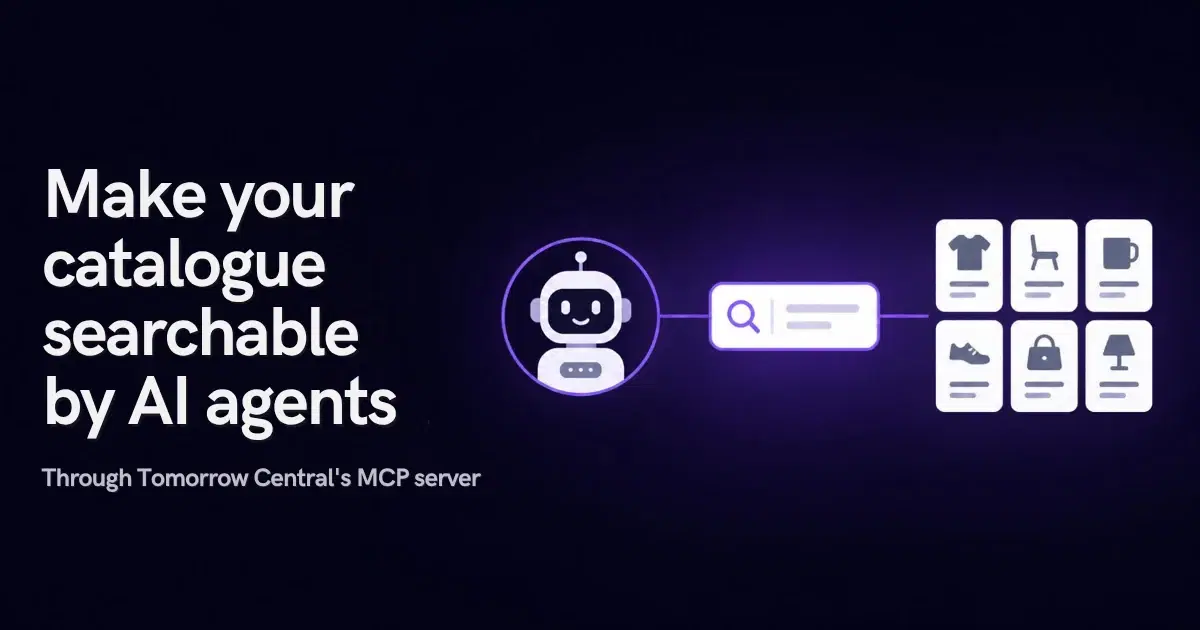
Ask an AI assistant whether you stock an item and it will usually guess, or scan whatever you pasted into the chat. Here is how to give Claude and other MCP-capable agents a real search over your catalogue, what an agent can and cannot do once connected, and how to set it up on Tomorrow Central.
What does it mean to make a catalogue searchable by AI agents?
Ask an AI assistant "do we stock a 2 inch stainless threaded ball valve?" and it has two bad options: guess from what it learnt in training, or read through whatever spreadsheet someone pasted into the chat. Neither is search, and neither knows what you sell today.
To make a catalogue searchable by AI agents, you give the agent a search tool that queries your live catalogue and returns real items with their links. The standard way to hand an agent a tool is the Model Context Protocol (MCP), an open standard for connecting AI applications such as Claude or ChatGPT to outside data and tools. On Tomorrow Central, Search is one of the tools on the platform's MCP server, so an agent you connect can search your catalogue with the same typo-tolerant engine that powers the search box on your website. Each catalogue you load lives in a search project: one searchable collection of items, with its own settings and statistics.
The agent does this as you, through OAuth (the standard way to let an application act on your account after you approve it on a consent screen), and never with more access than you have.
An agent that can search your catalogue answers from what you sell today. An agent that cannot is answering from memory.
Why do AI agents get catalogue questions wrong?
A language model is good at reading and writing. It is not a database of your stock, and it has no idea what changed in your catalogue last week. The failures are predictable:
| What the agent does | What goes wrong |
|---|---|
| Answers from training data | It describes products you never sold, or ones you dropped, with full confidence |
| Reads a pasted spreadsheet | The file is stale the day after it is pasted, and a large one does not fit in the conversation at all |
| Scans the text for an exact match | "stainles" or "1/2in" finds nothing, though the item is there |
| Browses your website page by page | Slow, partial and easily stopped by pagination or a search box it cannot use |
Size matters more than it seems. Claude, for example, caps a single tool result at roughly 150,000 characters on claude.ai and 25,000 tokens by default in Claude Code (Claude connector documentation). A catalogue of a few thousand items with descriptions will not fit, so "just give the agent the file" stops working well before a catalogue is large.
A search tool solves this the way it does for people: the agent sends a query, gets back a short list of the most relevant items, and reads only those.
Why does typo-tolerant search matter for agents too?
Agents pass on their user's words, misspellings included, and can add context that makes a query longer. An agent's query goes through the same engine as a visitor's, which corrects misspellings towards words in your own catalogue and relaxes long queries rather than returning nothing; the catalogue site search guide covers both. On the catalogue side, give every item a stable id, a clear title, a working URL and a short summary, in the words your customers use: the URL is what lets the agent send a person to the item instead of paraphrasing it.
MCP, API or a results page: which door should an agent use?
There are three ways software can reach your catalogue's search, and they suit different jobs:
| Door | What it is | Best for |
|---|---|---|
| MCP server | A standard tool interface that assistants such as Claude can connect to. The person approves access once through a consent screen | You or your team working in an AI assistant: asking questions, setting up search, checking a project |
| API | Ordinary authenticated HTTP calls with scoped access | Your own code or a custom agent you build and run |
| Search box or hosted results page | The public search on your verified website, or a hosted page with an address you can share | Visitors to your site, and anyone you send a search link to |
The distinction matters because MCP is a door for your agents, acting for you. It is not a way for any stranger's assistant to read your account.
Your catalogue is still public in the ordinary sense: once Search is live on your verified website, anyone browsing your site can search it. How shoppers' own assistants find your products on the open web is a separate question, about visibility rather than tooling, and this guide does not cover it.
What can an agent do with your catalogue through Tomorrow Central's MCP server?
Once connected, an agent can work with Search in six ways. Each one removes a step you would otherwise do by hand in the dashboard:
- List your search projects. The agent can see which catalogues you have set up, so "search the spares catalogue" goes to the right one.
- Run a query against your catalogue. It gets back real items, with titles and links, ranked by the same engine your website uses.
- Upload a catalogue. An agent can also load a catalogue file for you, under the same rules as an upload in the dashboard.
- Read your search statistics. It can report how your search is doing, including the searches that found nothing.
- Issue a search link or key. The agent can produce what you need to put search on your site or share results, so the step from "it works" to "it is live" does not need a separate trip to the dashboard.
- Switch Search on. For an organisation that has not enabled Search yet, the agent can switch it on, if you have granted it that permission separately.
An agent can't delete a search project.
The product's ordinary rules still apply when an agent does the work: search goes live only on a website you have verified, and the plan limits are those on the Search tool page.
What stops an agent from doing more than you allowed?
The agent connects through OAuth: your client sends you to a consent screen that names it and the permissions it wants, and nothing happens until you approve. Its access is checked the same way yours is, so it never exceeds your own permissions, and you can withdraw it from your dashboard at any time. That follows the MCP authorization specification (2025-06-18 revision), which requires an MCP server to accept only tokens issued for it, and the least-privilege principle in OWASP's guidance on prompt injection. One point specific to catalogues: item text is data. If a description, perhaps one written by a supplier, contains words that look like instructions, they are still just text in a search result, and a well-built agent should treat them that way.
How do you connect an agent to your catalogue on Tomorrow Central?
The whole path, from nothing to an agent answering questions from your catalogue:
- Sign up with Search switched on. Sign up for Search; signing up through that link switches Search on for your organisation. The free plan is enough to start.
- Set up a search project. Verify your website, then upload a CSV, JSON or product feed, or import your site. The step-by-step version is in how to add search to a website. You can also let a connected agent do the upload.
- Add Tomorrow Central's MCP server to your agent. The address and setup are on the agents page; an example for Claude Code follows this list.
- Approve access. On first use your client sends you to the consent screen. Read the permissions it asks for, then approve. No key or secret is copied or pasted.
- Ask a real question. Start with something you know the answer to, such as an item you stock, spelt the way a customer would spell it. Check that the agent's answer names the item and links to it.
In Claude Code, adding the server is one command:
claude mcp add --transport http tomorrowcentral https://api.tomorrowcentral.com/mcpIn claude.ai you add it as a custom connector by entering the same address. For a client that cannot open a browser to show a consent screen, the developers page covers connecting with an API key instead.
What does an agent searching your catalogue look like in practice?
These are illustrations of how the capabilities fit together, not customer case studies.
A sales team answering stock questions. A rep asks Claude, "Do we have a stainless ball valve, 2 inch, threaded?" The agent runs a query against the catalogue, gets the matching items despite the misspelling, and replies with the two closest items and their links. The rep forwards the links instead of searching the website by hand.
A catalogue owner checking a new catalogue before going live. After loading a new catalogue, the owner asks the agent to search it with ten misspellings and shorthand the sales team uses, and to say which ones found nothing. The owner adds the missing terms to the item text before putting search on the site.
An operations lead checking which catalogue is which. With three projects in the account, the lead asks the agent to list them and run the same query against each, to see which catalogue a customer complaint was about.
Common mistakes when giving agents catalogue access
- Pasting the catalogue into a chat instead of connecting search. It works for fifty rows and fails quietly at five thousand.
- Approving every permission on the consent screen without reading it. Grant search first; add the ability to switch Search on only if the agent needs it.
- Testing with perfect spelling. Test with the misspellings and shorthand your customers and sales team actually use.
- Treating the agent's answer as the record. The catalogue is the record. Ask the agent for the item's link and check it for anything that matters.
- Reading "no results" as "not stocked". An empty result can mean the query used words your catalogue does not. Check the catalogue before telling a customer you do not have the item.
Checklist before you rely on an agent for catalogue answers
- Search is switched on and your website is verified
- Your catalogue has an id, title and URL for every item, and the skipped-row report is clean
- The MCP server is added to your agent and you approved only the permissions you need
- Ten real queries, misspellings included, return the right items with links
Key takeaways
- To make a catalogue searchable by AI agents, give the agent a search tool over your live catalogue rather than a copy of it.
- MCP is the standard way to hand an assistant such as Claude that tool, and the person approves it through OAuth consent.
- Agents pass on their users' misspellings, so correction against your own catalogue and query relaxation matter for agents as much as for people.
- On Tomorrow Central, a connected agent can list projects, query, upload, read statistics, issue a search link or key, and switch Search on if separately allowed. It can't delete a project.
- An agent acting for you never has more access than you, and you can withdraw it at any time.
Try it with your own catalogue
Search is self-serve on Tomorrow Central with a free plan. Sign up with Search switched on, load your catalogue, then follow the agents page to connect Claude or another MCP client and ask it about an item you stock. The Search tool page lists the current plan limits. If you need Search inside your own environment, it is also available on-prem through ITMTB.
Sources
- What is the Model Context Protocol (MCP)?, modelcontextprotocol.io: the definition of MCP used here.
- Authorization, MCP specification, 2025-06-18 revision: MCP servers as OAuth resource servers, and audience-bound tokens.
- Build an MCP server for Claude, Claude documentation: custom connectors added by URL, and tool result size limits.
- LLM01: Prompt Injection, OWASP Top 10 for LLM Applications: least-privilege access as a mitigation.
- Site search for your catalogue, Tomorrow Central: how correction and relaxation work.
- How to add search to your website, Tomorrow Central: setting up a search project step by step.
Frequently asked questions
- How do I make my catalogue searchable by AI agents?
- Give the agent a search tool over your live catalogue instead of a copy of the catalogue. On Tomorrow Central, you load your catalogue into Search, add Tomorrow Central's MCP server to an MCP client such as Claude, and approve access on the consent screen. The agent can then query your catalogue and get real items with links.
- What is MCP search for a product catalogue?
- It is a search tool exposed through the Model Context Protocol, the open standard AI assistants use to connect to outside tools. The assistant sends a query to the tool and gets back matching catalogue items, rather than guessing or scanning a pasted file.
- Can an AI agent change or delete my catalogue?
- A connected agent can upload a catalogue for you if you approved that, under the same rules as an upload in the dashboard. An agent can't delete a search project. Switching Search on is a separate permission you grant or withhold.
- Does an agent get more access than I have, and can I take it back?
- No. An agent acts for you, with your consent through OAuth, and its access is checked the same way yours is: it is limited to what you approved and never exceeds your own permissions. You can withdraw it from your dashboard at any time; access ends within a minute and the agent cannot refresh its way back in.
- Which AI assistants can search my catalogue this way?
- Any client that supports remote MCP servers with OAuth, such as Claude Code and claude.ai's custom connectors. The address, and setup for Claude Code and other MCP clients, are on Tomorrow Central's agents page.
- Can I let AI agents search my store without connecting my account?
- Your store's search is public on your verified website, so anything that can use your site's search box or a shared search link can see the same results. Connecting through MCP is for agents acting for you, such as your own assistant or your team's.